Networking
Begineer Friendly
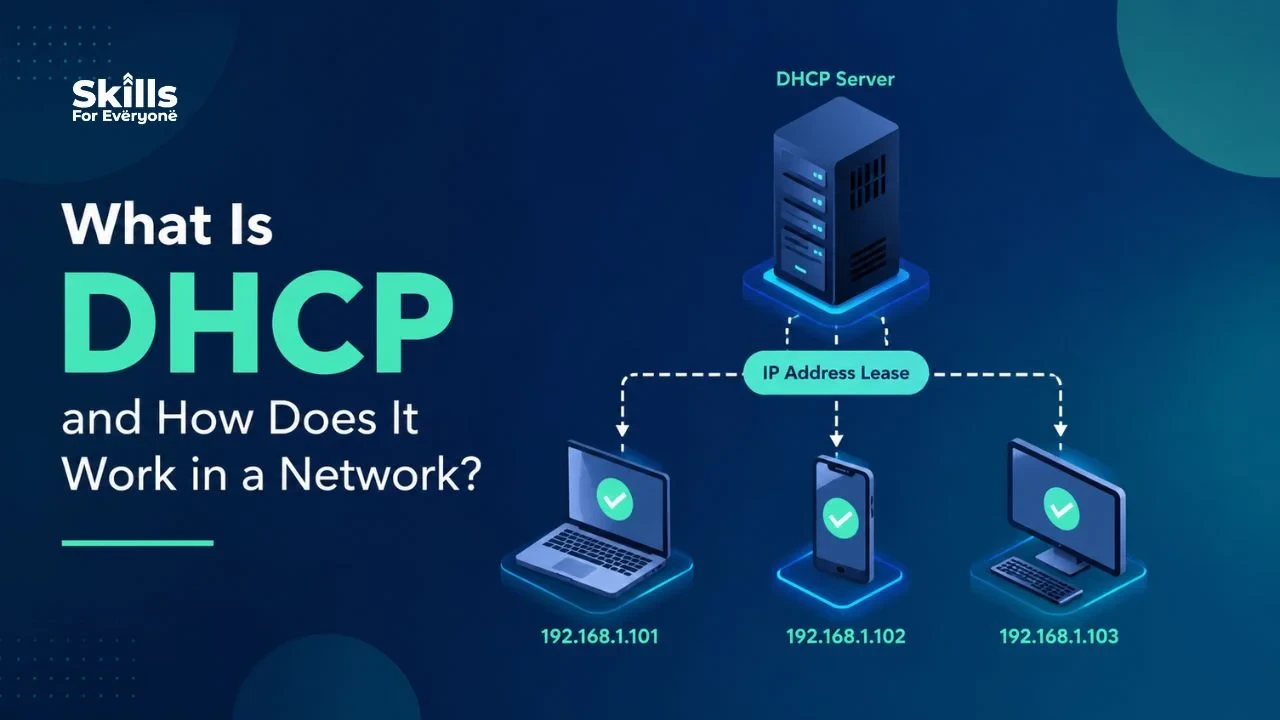
Every device that connects to your network needs an IP address to communicate. Manually assigning IP addresses to hundreds of devices would be tedious, error-prone, and impractical. That's where DHCP comes in.
Dynamic Host Configuration Protocol, or DHCP, is a networking protocol that automatically assigns IP addresses and other essential network configuration information to devices on a network. Whether you're connecting your laptop to WiFi at home or your phone to the office network, DHCP is working behind the scenes to get you online quickly.
This guide explains what DHCP is, how it works, why it matters, and what you need to know to understand modern networking.
What Is DHCP?
DHCP stands for Dynamic Host Configuration Protocol. It's a standardized protocol that automatically configures devices with the information they need to communicate on a network, including an IP address, subnet mask, default gateway, and DNS server addresses.
Rather than requiring a network administrator to manually type in configuration details for every device, DHCP does this work automatically. When a device connects to a network with DHCP enabled, it sends a request to a DHCP server, which responds by assigning an available IP address and other settings. This process typically takes just a few seconds.
Why DHCP Is Important for Networks
DHCP solves several critical problems in network administration.
First, it eliminates the need for manual IP assignment. In large organizations with thousands of devices, manual configuration would be impossibly time-consuming and prone to human error like duplicate IP addresses.
Second, it allows efficient use of IP address space. DHCP servers can recycle IP addresses when devices disconnect, meaning fewer addresses are wasted. This is especially important because the supply of available IP addresses is limited.
Third, it simplifies network changes. If you need to update your DNS servers or default gateway, you can change it once on the DHCP server rather than visiting every device individually.
Finally, it enables mobility. With DHCP, devices can move between networks and automatically receive appropriate configuration without manual reconfiguration.
For these reasons, DHCP is standard in virtually every modern network, from home WiFi to enterprise data centers.
How DHCP Works: The DORA Process
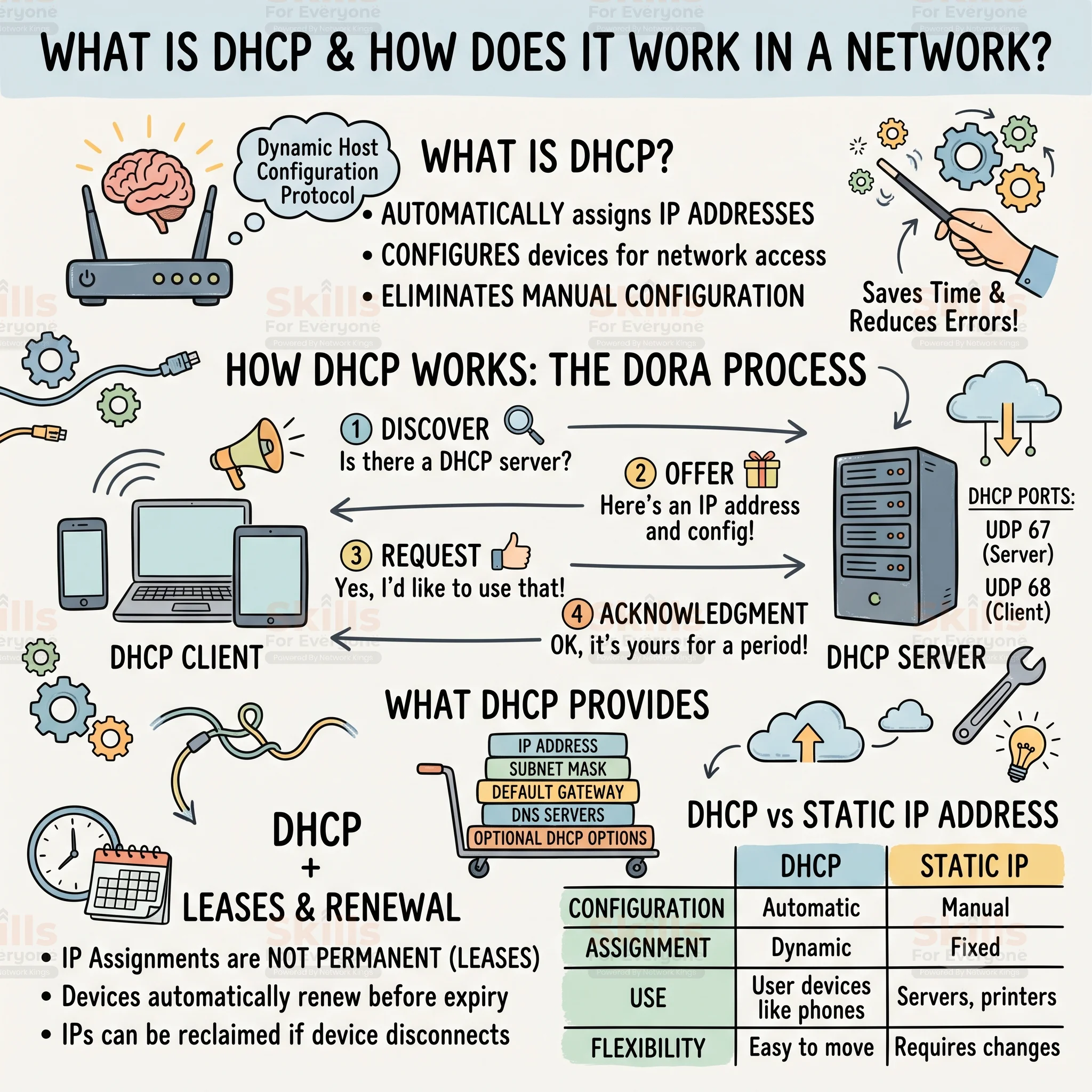
DHCP uses a four-step process called DORA to assign IP addresses and network configuration. Understanding these steps provides insight into how devices get online.
Discover: The Client Searches for a Server
When a device first connects to a network, it doesn't know the IP address of any DHCP server. Instead, the DHCP client broadcasts a DHCP Discover message to the entire local network asking, "Is there a DHCP server available?"
This broadcast message is sent to UDP port 68 from the device and received by any DHCP servers listening on UDP port 67.
Offer: The Server Responds with an IP Address
When a DHCP server receives the Discover message, it selects an available IP address from its configured pool and sends a DHCP Offer to the client. This offer includes not just an IP address, but also other configuration details like the subnet mask, default gateway, and DNS server addresses.
The client receives this offer but hasn't yet committed to using it.
Request: The Client Accepts the Offer
If the client receives one or more DHCP Offer messages, it selects one and sends a DHCP Request message back to the server that made the offer. This message essentially says, "Yes, I'll use the IP address and configuration you offered."
The request is also broadcast so other DHCP servers know their offers weren't accepted and can return unused addresses to their pools.
Acknowledgment: The Server Confirms the Assignment
Finally, the DHCP server sends a DHCP Acknowledgement message confirming that the IP address is now assigned to the device for a specific time period, called a DHCP lease. The device can now communicate on the network using this address.
The entire DORA process typically completes in seconds, which is why connecting to a WiFi network feels nearly instantaneous.
What Information Does DHCP Provide?
A DHCP server provides more than just an IP address. The complete package includes:
The IP address itself, which identifies the device on the network. The subnet mask, which defines which other addresses are on the same local network. The default gateway, which the router devices use to reach networks beyond their local segment. DNS server addresses, allowing devices to translate domain names like google.com into IP addresses. Optional DHCP options like the time server, WINS servers, or domain name.
All of this information is configured once on the DHCP server and automatically distributed to every device that connects.
What Port Does DHCP Use?
DHCP uses UDP for client-server communication. DHCP servers normally listen on UDP port 67, while DHCP clients use UDP port 68.
Therefore, the commonly referenced DHCP ports are:
UDP 67 for DHCP servers
UDP 68 for DHCP clients
Knowing these ports is useful when configuring firewalls, analyzing packet captures, and troubleshooting DHCP communication.
DHCP Leases and Renewal
IP address assignments through DHCP aren't permanent. Instead, they're issued for a specific time period called a lease. A typical DHCP lease might last 24 hours, though this varies depending on network configuration.
Before the lease expires, the device automatically attempts to renew it with the DHCP server. In most cases, the server grants a renewal and extends the lease for another period. This allows addresses to be reclaimed if a device is powered off or removed from the network permanently.
If a lease expires without renewal, the device loses its IP address and must go through the DORA process again to receive a new one.
DHCP vs Static IP Address
Feature | DHCP | Static IP |
Configuration | Automatic | Manual |
IP Assignment | Dynamic and temporary | Fixed and permanent |
Setup Time | Seconds | Minutes per device |
Device Mobility | Works immediately on any network | Requires manual reconfiguration |
Scalability | Excellent for large networks | Impractical for many devices |
Common Use | Computers, phones, printers | Servers, network infrastructure |
Flexibility | Easy to change network settings | Changes require manual intervention |
IP Efficiency | High, addresses recycled | Low, addresses stay assigned |
Most user devices rely on DHCP for convenience. However, servers, routers, and network printers often use static IP addresses because they need to be reachable at the same address consistently.
DHCP Reservations and Special Configurations
DHCP also supports reservations, which allow you to assign a specific IP address to a particular device while still using DHCP. You identify the device by its MAC address (a unique hardware identifier), and the DHCP server always assigns the same IP to that device whenever it connects.
This combines the automatic configuration benefits of DHCP with the stability of a static IP address, making it ideal for devices like network printers that need a consistent address but shouldn't be manually configured.
In larger networks, a DHCP relay agent helps DHCP work across multiple subnets by forwarding DHCP messages between segments that can't directly communicate.
Common DHCP Problems and Troubleshooting
When DHCP is unavailable or communication fails, a device may not receive a valid IP configuration.
Common causes include:
DHCP server failure
Exhausted DHCP scope
Incorrect VLAN configuration
Network connectivity problems
DHCP relay misconfiguration
Firewall rules blocking DHCP traffic
Incorrect DHCP server settings
One common symptom is a device receiving a 169.254.x.x address. On many operating systems, this indicates that the device has automatically assigned itself a link-local address because it could not obtain a usable IPv4 address through DHCP.
Basic troubleshooting usually starts by checking physical or wireless connectivity, verifying the DHCP server is available, checking the address pool, and confirming that VLANs, relay configuration, and relevant network policies are correct.
DHCP in a Real Network
Consider a home WiFi network. When you turn on your laptop and connect to your WiFi router, your laptop automatically sends a DHCP Discover message. The DHCP server in your router responds with an offer that includes an IP address, the router's address as the default gateway, and the DNS servers you've configured. Your laptop accepts, and within seconds, you're browsing the internet.
If you unplug your router or reset it, the lease information is typically retained, and your laptop quickly reconnects. If you take your laptop to a coffee shop and connect to their WiFi, the same process repeats with the coffee shop's DHCP server, and you get a new IP address appropriate for their network.
Why Network Administrators Need to Understand DHCP
For IT professionals and network engineers, DHCP is a critical skill. Proper DHCP configuration prevents IP address conflicts, ensures reliable network access, and supports efficient use of address space. Understanding DHCP troubleshooting helps resolve connectivity issues quickly.
Many networking certifications, including the CCNA, include DHCP concepts because it's so fundamental to modern networks.
Conclusion
DHCP is the invisible infrastructure that automatically configures your devices for network communication. Through the DORA process, a DHCP server assigns IP addresses, subnet masks, gateways, and DNS information without any manual effort on your part.
Understanding what DHCP is and how it works gives you insight into one of networking's most important protocols. Whether you're an IT professional configuring enterprise networks or a user curious about how your devices stay connected, DHCP's automatic configuration approach remains essential to how modern networks function efficiently and reliably.
Frequently Asked Questions (FAQs)
1. Can DHCP assign the same IP address to a device every time?
Yes. A DHCP server can often assign the same IP address to a device by creating a DHCP reservation based on its MAC address. This provides consistent addressing while keeping configuration centrally managed.
2. Can two devices have the same DHCP IP address?
Normally, a properly configured DHCP server should not assign the same IP address to two active devices. Duplicate IP addresses can still occur because of configuration errors, multiple DHCP servers, or devices using manually configured addresses.
3. Can a router act as a DHCP server?
Yes. Many home and small-business routers include a built-in DHCP server that automatically assigns IP addresses and other network settings to connected devices.
4. Can there be more than one DHCP server on a network?
Yes, but multiple DHCP servers must be configured carefully. If unauthorized or incorrectly configured DHCP servers are present, they can provide conflicting network settings and cause connectivity problems.
5. Does DHCP work with IPv6?
Yes. IPv6 supports DHCPv6, which provides configuration information to IPv6-enabled devices. However, IPv6 can also use Stateless Address Autoconfiguration (SLAAC), so DHCPv6 works differently from traditional IPv4 DHCP.
6. Is DHCP secure?
DHCP does not inherently provide authentication or encryption between clients and servers. Organizations therefore use network security controls such as DHCP snooping, VLAN segmentation, and access controls to reduce the risk of unauthorized DHCP activity.
7. Can DHCP assign a public IP address?
It can, but DHCP is commonly used to assign private IP addresses inside local networks. Internet service providers may also use DHCP to dynamically assign public IP addresses to customer routers or other network devices.
8. What is DHCP snooping?
DHCP snooping is a Layer 2 security feature available on many managed switches. It helps protect a network from unauthorized DHCP servers by distinguishing trusted DHCP ports from untrusted ports and filtering suspicious DHCP messages.